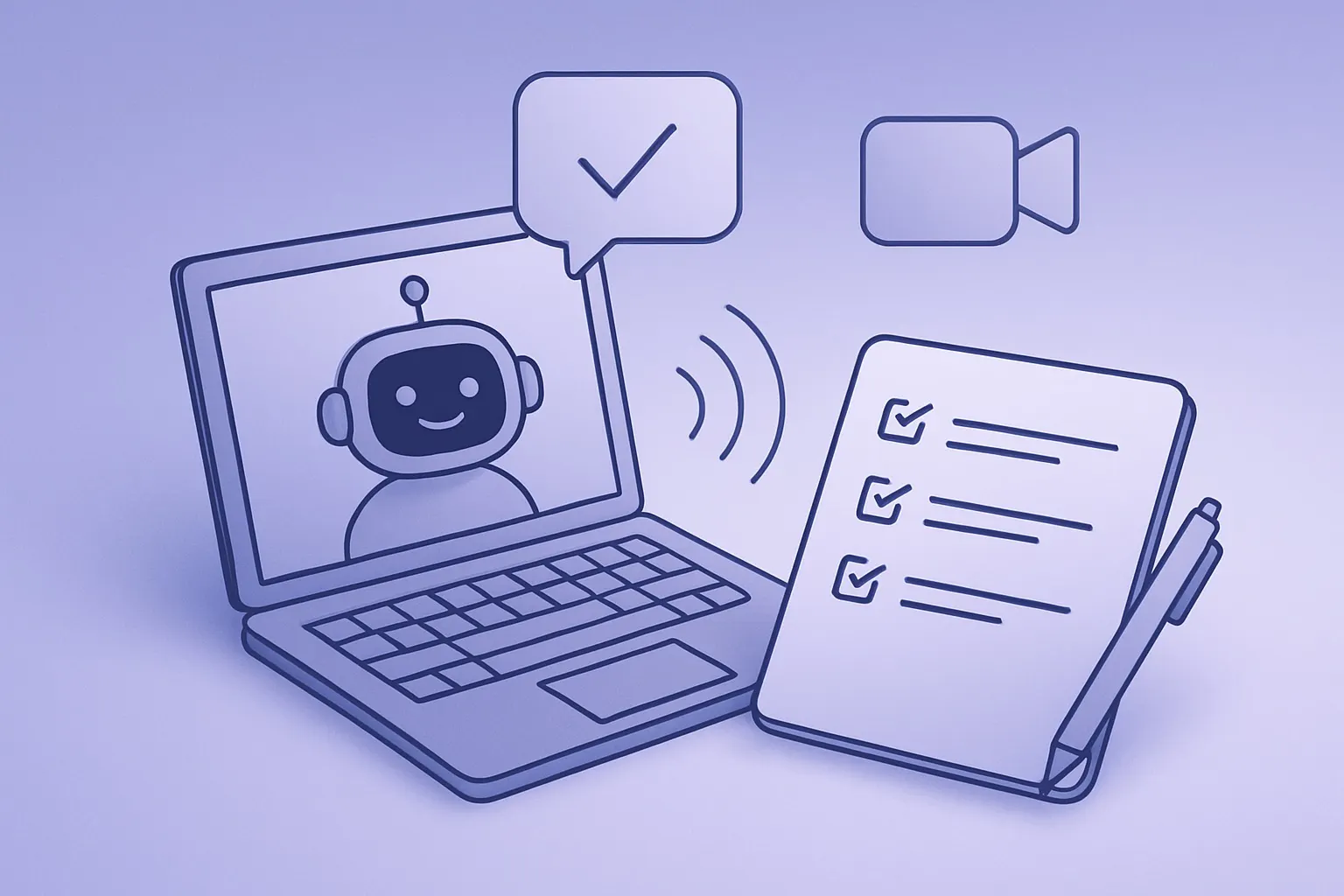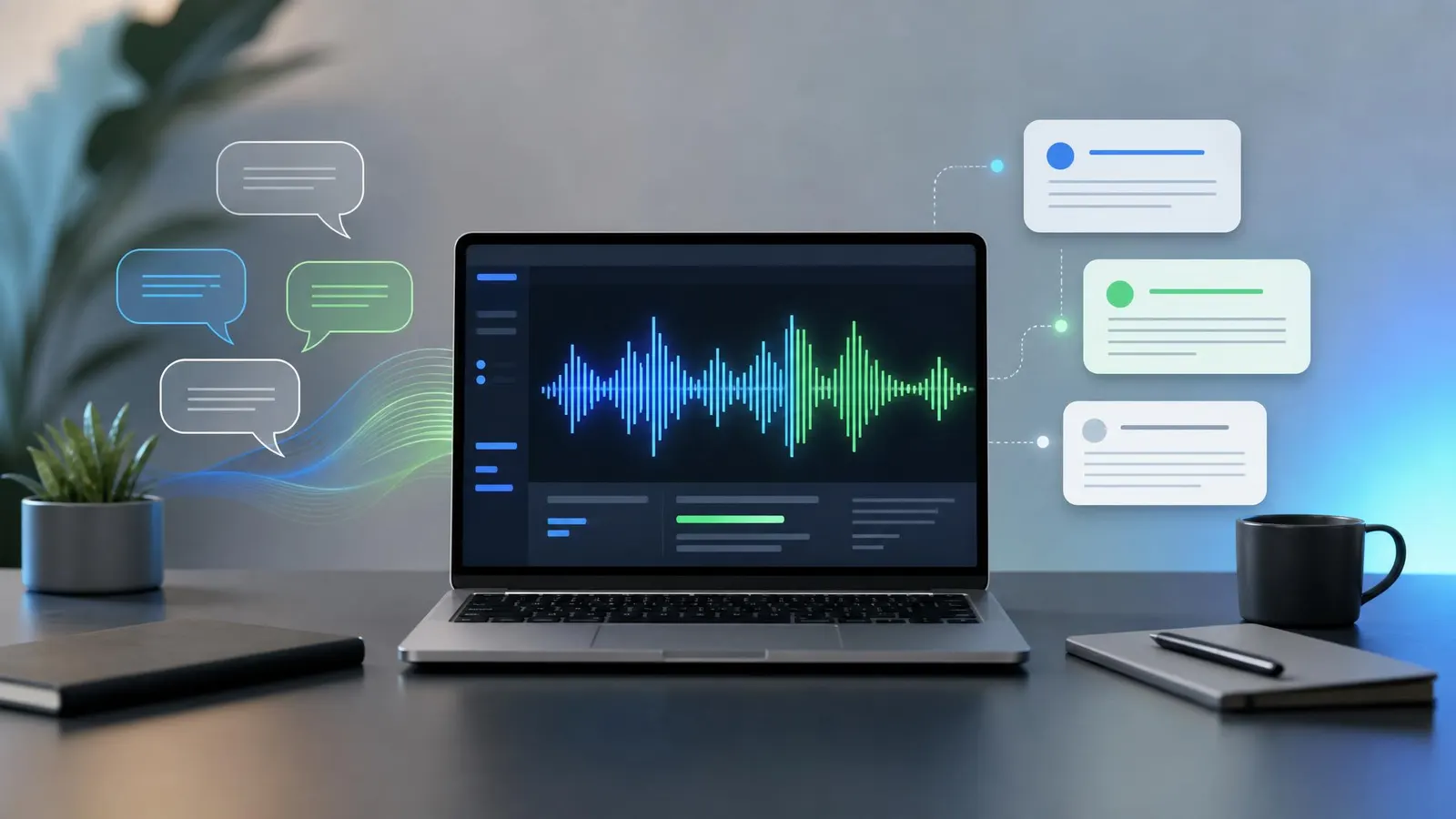
AI transcription for Zoom meetings is now accurate enough for everyday team calls, client interviews, coaching sessions, and training recordings. The quick answer: use Zoom's built-in transcript when you need simple searchable notes, add a dedicated tool like Otter, Fireflies, or Fathom when you need summaries and action items, and improve your audio setup before blaming the software. Clean sound still matters more than any magic setting.
This guide walks through the practical setup: what to turn on, which tools are worth testing, how to handle consent, and the small accessories that make transcripts much cleaner. If you already use broader AI transcription tools, Zoom is usually the easiest place to turn those tools into a repeatable workflow.
Start With the Right Zoom Transcript Settings
Before paying for another app, check what your Zoom account already includes. Zoom can create live captions during a meeting and generate transcripts for cloud recordings on supported plans. For solo consultants, teachers, and small teams, that may be enough.
The catch is workflow. A raw transcript is useful, but it is rarely the final deliverable. Someone still has to find decisions, clean up names, pull action items, and send the follow-up. That is where dedicated AI meeting tools earn their keep.
At minimum, set up a repeatable meeting template:
- Enable live captions when accessibility matters.
- Record to the cloud if you need a post-call transcript.
- Name meetings clearly so transcripts are searchable later.
- Ask participants to say their name before long comments on important calls.
- Save transcripts in the same place your team stores project notes.
Zoom's own support documentation is the best place to confirm current account requirements and admin settings: Zoom's automated captions and transcripts guide.
Best AI Transcription Tools for Zoom Calls
The right tool depends on what you want after the meeting ends.
Otter.ai is the straightforward choice for general business calls. It can join Zoom meetings, produce a live transcript, summarize the discussion, and make the notes searchable. It works especially well for recurring team meetings where the same people speak each week. Fireflies.ai is stronger when meetings need to update a CRM or project system. Sales calls, customer interviews, and client check-ins often benefit from automatic tagging, sentiment notes, and integrations. Fathom is worth trying if you want quick highlights and easy sharing without building a heavy knowledge-management system. It is popular with people who spend much of the week on video calls and want low-friction summaries. Descript is a better fit when Zoom recordings become content. If you record interviews, webinars, or internal training, Descript lets you edit the video by editing the transcript.If your team is still comparing meeting capture options, pair this article with our AI meeting assistants guide before committing to an annual plan.
Improve Accuracy Before You Buy More Software
Most bad transcripts start as bad audio. AI models are better in 2026, but they still struggle with echo, laptop microphones, crosstalk, and people calling from noisy rooms.
For frequent Zoom calls, a simple USB microphone is often the best upgrade. Search for a compact model with clear speech pickup, such as USB microphones for Zoom calls. If you travel or work from shared spaces, noise-cancelling headsets with boom mics usually beat earbuds because the microphone sits closer to your mouth.
Room setup matters too. Hard walls, bare desks, and empty rooms create echo. You do not need a studio, but a rug, curtains, bookshelves, or soft furniture can make speech easier for both humans and AI to understand.
For group rooms, avoid putting one laptop at the end of a table. A conference speakerphone for Zoom captures voices more evenly and reduces the "distant cave" effect that wrecks transcripts.
Privacy, Consent, and Cleanup
Transcribing a Zoom meeting is not just a productivity choice. It creates a written record, which can be sensitive. Tell participants when a meeting is being recorded or transcribed, especially for hiring interviews, customer calls, legal discussions, medical topics, or internal performance conversations.
Good practice looks like this:
- Add a note to the calendar invite when transcription will be used.
- Announce the recording or AI note-taker at the start of the call.
- Limit transcript access to people who actually need it.
- Delete transcripts on a schedule instead of keeping everything forever.
- Remove personal details before sharing notes broadly.
Also review transcripts before sending them externally. AI transcription can mishear names, numbers, medical terms, product names, and commitments. A transcript is evidence of what the tool heard, not a guarantee of what everyone meant.
A Simple Zoom Transcription Workflow
For most teams, the best workflow is boring and consistent.
First, decide which calls deserve transcription. Weekly status meetings, client decisions, interviews, demos, and training sessions usually do. Casual one-on-ones may not.
Second, use the same tool every time. Switching between Zoom transcripts, Otter, Fireflies, and random recording folders makes knowledge harder to find.
Third, assign one owner for the follow-up. AI can draft the recap, but a person should confirm decisions, deadlines, and responsible owners.
Fourth, store the finished notes where work happens. Project calls belong in the project tracker or shared docs, not buried in a transcription app nobody searches.
Finally, review your setup monthly. If the team never opens the transcripts, you may only need summaries. If summaries miss key details, preserve the full transcript. If accuracy is poor, upgrade the microphone before replacing the software.
FAQ
Can Zoom transcribe meetings for free?
Zoom offers captioning and transcript features depending on account type, meeting settings, and whether you record to the cloud. Free users may have fewer options than paid accounts. Check your Zoom settings before assuming you need a separate app.
Are AI Zoom transcripts accurate enough for client calls?
They are usually accurate enough for notes and follow-ups, especially with clear audio. For contracts, compliance, legal matters, or medical use, treat the transcript as a draft and review it carefully before relying on it.
What is the easiest way to get better Zoom transcripts?
Use a better microphone, reduce background noise, ask speakers not to talk over each other, and use a tool that identifies speakers. Those four changes improve results more than most advanced settings.
Bottom Line
AI transcription for Zoom meetings works best when it is part of a clean meeting workflow, not a random bot that dumps transcripts into another inbox. Start with Zoom's built-in options, add a dedicated AI meeting assistant if you need summaries or integrations, and invest in decent audio. The result is fewer forgotten decisions, faster follow-ups, and a searchable record your team can actually use.