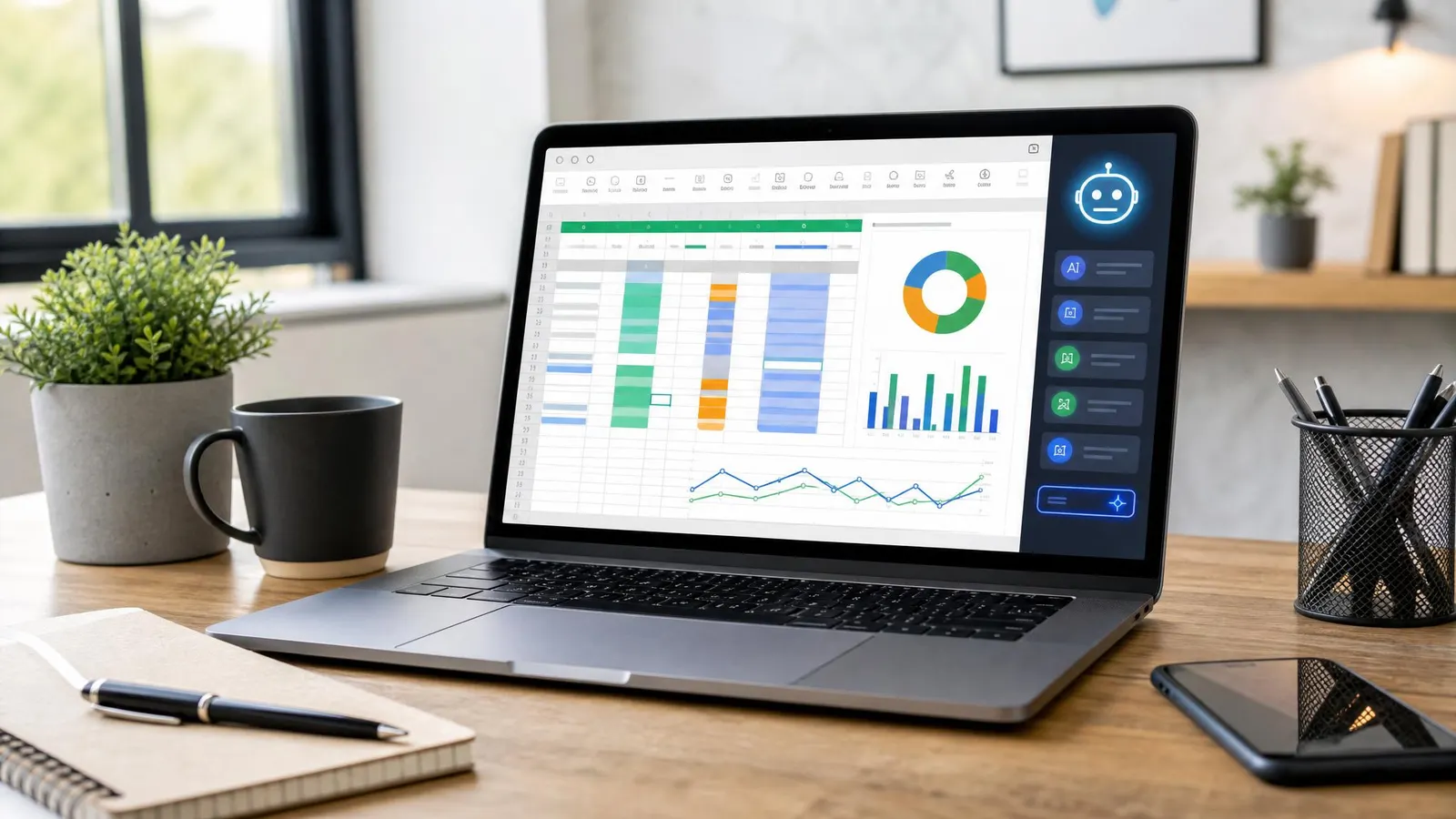
Spreadsheets are still where budgets, forecasts, campaign results, inventory lists, and customer exports land. The problem is that the work around them is repetitive: fix inconsistent names, write lookup formulas, spot outliers, build charts, explain what changed, and turn those findings into a weekly update. AI can remove a lot of that drag without forcing a team to abandon Excel or Google Sheets.
For broader workflow context, see our guide to AI productivity tools. This article focuses on spreadsheet-specific work: where AI helps, where it can be risky, and which tools are worth testing first.
What AI Spreadsheet Automation Actually Does
The most useful AI spreadsheet features are practical and narrow. They help you ask, "What changed this week?" or "Why is this formula broken?" without starting from a blank cell.
Good tools can generate formulas from plain English, explain existing formulas, classify messy text, deduplicate lists, normalize dates, suggest pivot tables, and summarize a table in a few sentences. Some can also create charts or draft a narrative report from spreadsheet data.
That matters because spreadsheet work usually has two layers. First, there is mechanical cleanup. Second, there is judgment. AI is strong at the first layer and helpful at preparing the second, but humans still need to approve conclusions before decisions are made.
Best Tools to Test First
Microsoft Copilot for Excel is the obvious starting point for teams already living in Microsoft 365. It can help with formulas, summaries, chart suggestions, and natural-language analysis inside the spreadsheet environment many businesses already trust. Microsoft also publishes guidance on Copilot in Excel, which is worth reviewing before rolling it out to a team. Google Gemini for Sheets is the natural option for Google Workspace teams. It is useful for drafting formulas, organizing tables, and turning spreadsheet data into summaries that can be shared in Docs or Gmail. ChatGPT with uploaded spreadsheets works well for analysis, cleanup planning, and report drafting, especially when you need to reason across a CSV export rather than build a live sheet. Use it with non-sensitive data or a properly approved business plan. Airtable AI is a better fit when your "spreadsheet" is really a lightweight database. It can classify records, summarize customer notes, and generate fields from structured data.If you are cleaning up a physical workspace around reporting days, a basic laptop stand and wireless keyboard can make long spreadsheet sessions less painful. For teams moving files between machines, an external SSD is still useful for local backups before bulk imports.
A Reliable Reporting Workflow
Start with a copy of the spreadsheet, not the original. AI tools are helpful, but a bad instruction can still create a bad transformation. Keep raw data untouched and work in a separate analysis tab or duplicate file.
Next, give the tool one job at a time. Ask it to identify missing values before asking it to fix them. Ask for a formula before applying the formula across the whole column. Ask for a summary, then request the assumptions behind that summary.
A strong weekly workflow looks like this:
- Import raw data into a locked tab.
- Ask AI to flag missing fields, duplicates, and unusual values.
- Generate formulas for calculated columns.
- Build pivot tables or grouped summaries.
- Ask AI for a plain-English explanation of the changes.
- Review the output manually before sending it.
This keeps AI in the assistant role. It speeds up repetitive work without quietly rewriting the source of truth.
Where AI Spreadsheet Tools Can Go Wrong
The biggest risk is confidence. AI can explain a spreadsheet beautifully while misunderstanding a column, a time period, or a business rule. That is especially dangerous in finance, operations, hiring, and legal reporting.
Another risk is privacy. Many spreadsheets include customer records, employee information, vendor terms, or unreleased business metrics. Before uploading a file to any AI service, check your company policy and the vendor's data handling rules.
Formula errors are also easy to miss. A generated formula may work on the visible sample but fail on blank rows, unusual text, regional date formats, or future columns. Always test formulas on edge cases before using them in a recurring report.
FAQ
Are AI spreadsheet automation tools accurate?
They can be accurate for formula drafting, cleanup suggestions, and summaries, but they still need review. Treat the output like work from a fast junior analyst: useful, but not final until checked.
Can AI replace Excel experts?
No. AI reduces repetitive spreadsheet labor, but experienced analysts still define the logic, verify assumptions, and understand the business context. The best users are often the people who already know spreadsheets well.
What is the safest way to start?
Start with low-risk data and copied files. Use AI to explain formulas, suggest charts, and summarize trends before letting it transform important datasets. Once the process is reliable, document the prompts and checks your team should reuse.
AI spreadsheet automation is not about replacing spreadsheets. It is about making the weekly spreadsheet grind less manual. The teams that benefit most will build a repeatable process: clean data carefully, ask focused questions, verify formulas, and keep humans responsible for final decisions.