TL;DR: AI email assistants are best for summarizing long threads, drafting first-pass replies, spotting action items, and turning messy inboxes into prioritized queues. For most people, the right setup is a lightweight assistant inside Gmail or Outlook plus a separate writing tool for sensitive or high-stakes messages.
Email is still where work goes to become invisible. A request arrives, gets buried under newsletters, resurfaces three days later, and somehow becomes urgent. AI email assistants do not fix bad communication habits by themselves, but they can remove a lot of inbox friction when you use them deliberately.
The key is choosing a tool for the job you actually have. Some people need faster replies. Others need better follow-up tracking, cleaner summaries, or a way to process client messages without living in email all day. Here is how to pick the best AI email assistant without adding yet another distracting app to your workflow.
What AI Email Assistants Actually Do
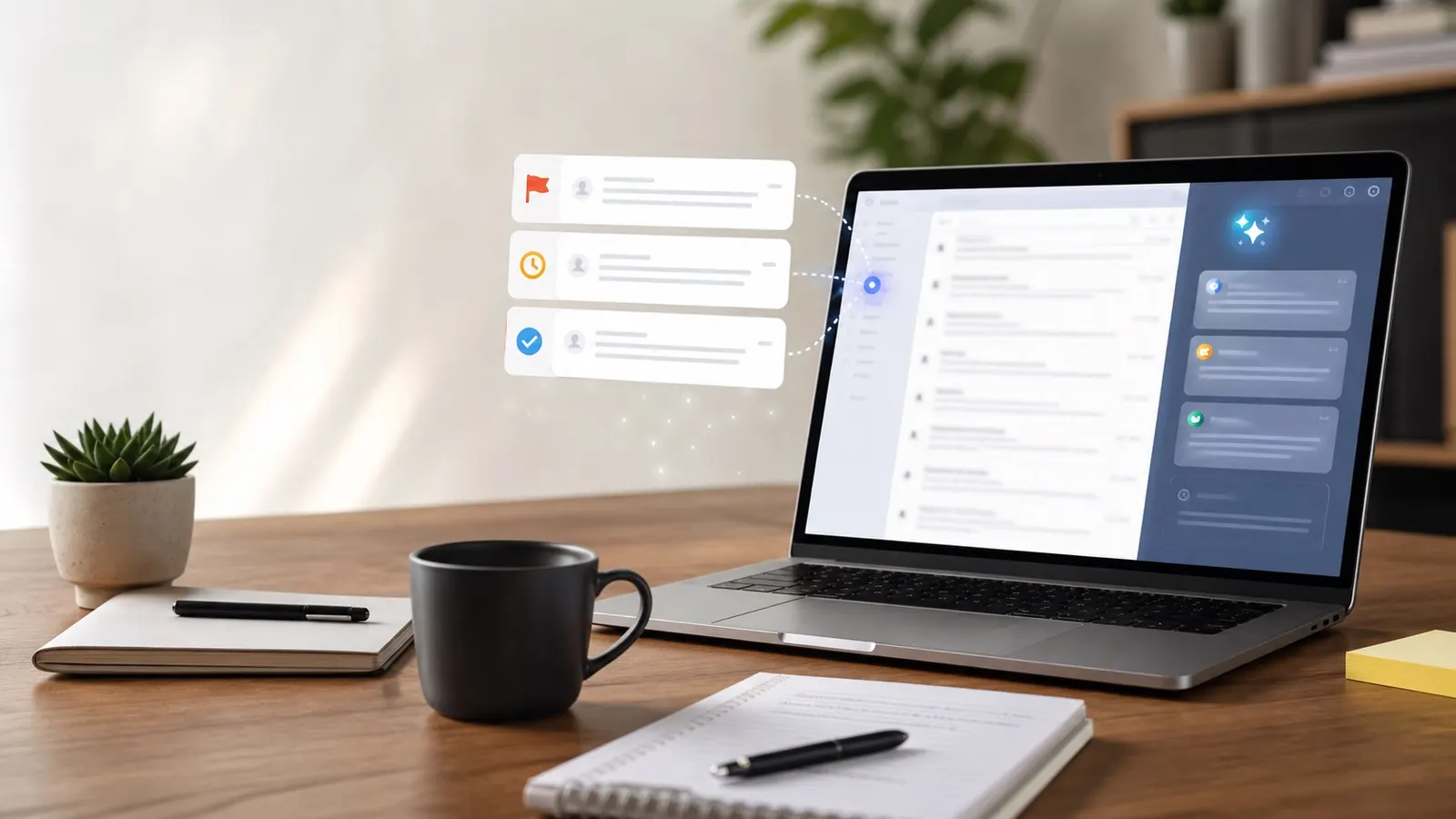
Most AI email assistants fall into four practical buckets:
- Inbox triage: Sort, prioritize, label, or surface messages that likely need attention.
- Thread summaries: Condense long back-and-forth conversations into decisions, open questions, and next steps.
- Reply drafting: Turn rough notes into polished responses, or suggest a reply based on the thread.
- Follow-up automation: Remind you when someone has not responded, or extract tasks from incoming messages.
This is closely related to broader AI productivity tools, but email deserves its own category because the privacy stakes are higher. Your inbox can contain contracts, invoices, health details, customer data, and personal conversations. Speed matters, but trust matters more.
Best AI Email Assistant Setups by Workflow
For Gmail-heavy teams
If your work already lives in Google Workspace, start with the AI features built into your account before paying for another tool. The advantage is context: drafts, docs, calendar events, and email often live in the same ecosystem. That makes it easier to summarize threads and write responses that fit the surrounding work.
Google's own Workspace AI resources are a useful place to understand what is available natively. The downside is that built-in tools can feel broad rather than specialized. They help with writing and summaries, but may not replace a dedicated inbox workflow app.
For Outlook and Microsoft 365 users
Microsoft 365 users should evaluate Copilot inside Outlook first. It is strongest when email, calendar, Teams, and Word are already part of your daily loop. The best use case is not "write every reply for me." It is asking for a fast summary before a meeting, extracting unresolved questions, and drafting a response you can edit in your own voice.
If you take a lot of calls, pair email AI with an AI transcription workflow. Meeting notes plus email summaries make follow-ups far less painful.
For solo operators and freelancers
Freelancers usually need fast client replies, proposal polish, and follow-up reminders. A dedicated assistant like Shortwave, Superhuman AI, or Grammarly can be more useful than a heavyweight enterprise suite. Look for keyboard shortcuts, mobile support, and fast thread summaries.
This is also where a simple hardware upgrade can help. A comfortable ergonomic keyboard or portable monitor will not sound as exciting as AI, but it makes reviewing drafts and managing long inbox sessions much easier.
How to Choose Without Overbuying
Do not choose based on the flashiest demo. Choose based on your inbox pain:
If you miss important messages: prioritize triage, labels, and reminder features. If threads are too long: prioritize summaries and action-item extraction. If replies take too much time: prioritize drafting quality, tone controls, and reusable templates. If privacy is the blocker: check retention policies, admin controls, and whether the vendor uses your content for model training. The NIST AI Risk Management Framework is a helpful reference if you are evaluating AI tools for a business rather than personal use.Pricing matters too. A $20-per-month assistant is easy to justify if it saves an hour a week. It is harder to justify if it only rewrites messages you would have sent in two minutes anyway.
Practical Email AI Workflow
The best workflow is boring and repeatable:
- Start the day with summaries, not individual messages.
- Open the highest-priority threads first.
- Let AI draft only the first version of routine replies.
- Edit anything involving money, legal terms, emotions, or commitments.
- Turn extracted action items into tasks outside your inbox.
For deeper work, keep a notebook or paper planner nearby for the three outcomes that matter today. AI can summarize a hundred messages, but it cannot decide your priorities for you.
Common Mistakes to Avoid
The first mistake is sending AI-written replies untouched. Even good drafts can sound slightly generic, and generic email weakens trust. Add one specific sentence that proves you read the thread.
The second mistake is giving every tool full inbox access. Start narrow. Test with a non-critical account or limited permissions when possible.
The third mistake is using AI to make email faster while leaving every notification on. Pair your assistant with focus blocks, batch processing, and a decent noise-cancelling headset if calls and messages constantly compete for attention.
FAQ
Are AI email assistants safe for confidential messages?
They can be, but only if the vendor's privacy controls match your risk level. For work email, review data retention, training use, admin settings, and access permissions before connecting a full inbox.
Can AI email assistants replace an executive assistant?
No. They can summarize, draft, sort, and remind, but they do not understand relationships, politics, or judgment-heavy priorities the way a skilled human assistant does.
What is the best free AI email assistant?
The best free option is usually the AI already included in your email platform or browser. Start there, then upgrade only if you need stronger triage, follow-up tracking, or writing controls.
The Bottom Line
AI email assistants are worth using when they reduce decision fatigue, not just typing time. Start with summaries and routine drafts, keep sensitive decisions human-reviewed, and choose the tool that fits your actual inbox problem. The goal is not an empty inbox at any cost. The goal is an inbox that stops hiding the work that matters.